Why Haven’t You Received Your LinkedIn Verification Code?
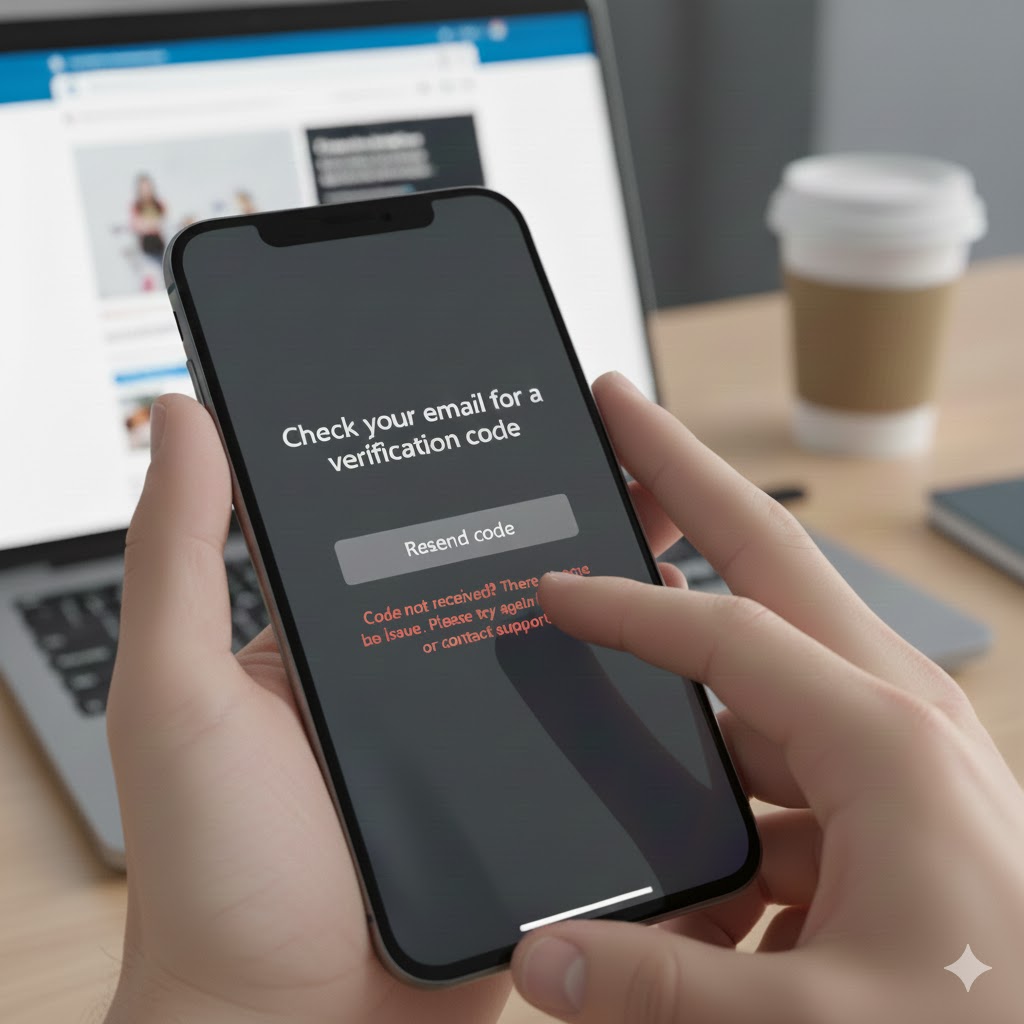
Are you waiting for a verification code from LinkedIn, but nothing shows up in your inbox?
You’re not alone. It’s a surprisingly common issue, and often the solution is simpler than you think. In this post, I’ll walk you through real, practical steps to troubleshoot the problem step by step, so you can get back into your account fast.
The Most Common Causes Behind “LinkedIn Verification Code Not Received”
Before diving into the how-to section, here’s a quick snapshot of what usually goes wrong when LinkedIn fails to send you a verification code:
The email address LinkedIn used is slightly different (typos, alternate alias, forwarding).
The message landed in Spam, Junk, or a different folder/tab (Promotions, Social, Updates).
Your inbox filters or security settings are blocking or quarantining LinkedIn's email.
Temporary delays on LinkedIn’s side or with your email provider.
Browser or app glitches preventing the verification flow from finishing.
Account issues: unverified phone, old email address, or other security flags.
Step-by-Step Guide to Fix “LinkedIn Verification Code Not Received”
1. Double‑check the email LinkedIn shows is active and correct
Make sure the email LinkedIn displays is exactly the one you’re checking, watch for small typos or alternate aliases. If you use something like yourname+work@gmail.com, try checking that as well, or log in via webmail to manually browse around.
If you manage multiple email addresses, or if there’s any forwarding/alias set up, log in to each variant and search for “LinkedIn” or “no-reply@linkedin.com.”
2. Inspect every folder, not just the inbox
Your verification email may have landed somewhere unexpected.
Check:
Spam / Junk
Promotions, Social, or Updates tabs
Any filters, automatically sorted folders, or quarantine folders
Pro tip: Use your provider's webmail client and do a full search for “LinkedIn” to catch misfiled messages.
LinkedIn itself recommends adding their domain to your trusted list and making sure your account is personal (not a role‑based alias) if possible.
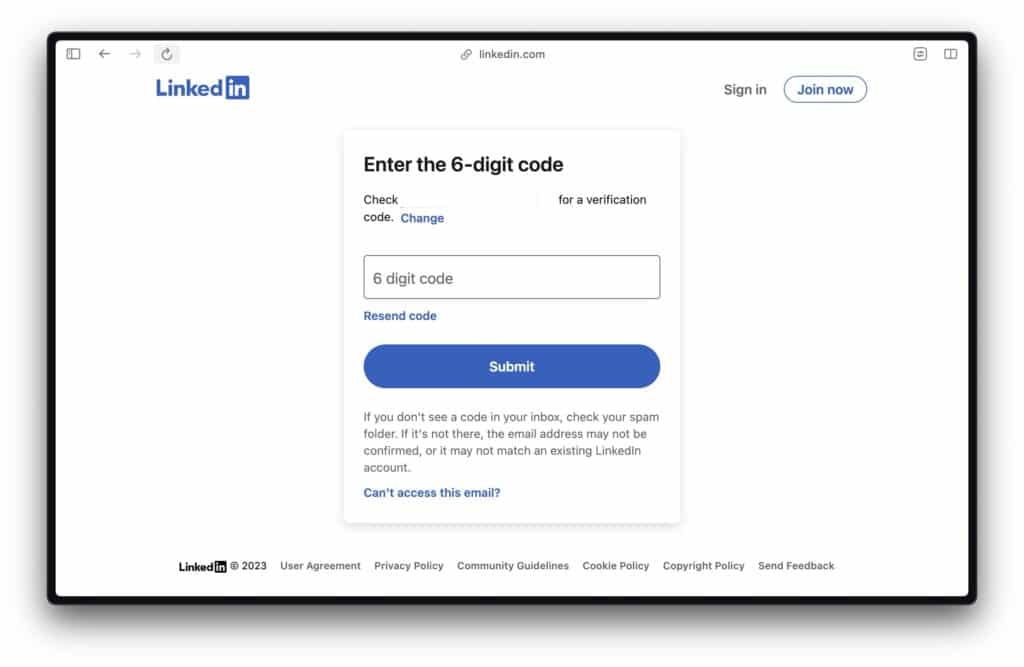
3. Wait a few minutes, then try “Resend code”
Sometimes the email can be delayed by a few minutes. Hit “Resend code,” wait 5–10 minutes, and maybe try only once every minute or two, rapid-fire resends can trigger rate-limits or stuck email processing.
If nothing arrives after a reasonable wait, move on to the next steps.
4. Try a different device, browser or the LinkedIn mobile app
Occasionally, browser cache, cookies, or extensions interfere with the verification process.
Try:
Clearing your browser cache and cookies
Opening a private/incognito window
Using a different browser or switching from desktop to mobile (or vice versa)
Using the official LinkedIn mobile app (or reinstalling it if already installed)
See the Troubleshooting in Action
Here’s a helpful video that guides you through the most common fixes when your LinkedIn verification code is not arriving:
Watching these steps can sometimes make all the difference, especially if you’re a visual learner.
If Email Still Doesn’t Come, Next-Level Checks
If the code still isn’t showing up after you’ve tried the basics, it might hint at deeper issues:
Your email provider or corporate filters could be blocking LinkedIn
If you use a business or school email address, an admin-level spam filter or security appliance might quarantine or block automated mails like LinkedIn’s.
Ask your IT team whether they can search mail server logs or whitelist @linkedin.com (or no-reply@linkedin.com).
If you manage a custom domain, make sure your SPF/DKIM/DMARC are set up properly, misconfiguration can cause legitimate mails to be dropped silently.
Your account might be partially restricted, flagged, or compromised
If you’ve received weird notifications, sudden login prompts, or suspect someone else tried messing with your account, LinkedIn might block certain recovery methods. In that case:
Use the official LinkedIn “Help Center > Trouble signing in” flow (look for “I don’t have access to this email/phone”)
Be ready to provide: the exact email LinkedIn shows, your profile URL, dates and times of last successful login, and a clear summary of what you’ve already tried.
Final Thoughts
It’s easy to get stuck when that magic “verification code” from LinkedIn never arrives, and frustrating when you don’t know why. But nine times out of ten, the solution is a quick check of your inbox (and its hidden corners), or simply using a different device or app.
If nothing pops up after that? It’s worth digging deeper, maybe your email provider blocked it, maybe LinkedIn flagged the account, or maybe there’s a configuration issue.
Either way, following the steps above gives you a clear path to regaining access, and making sure it won’t happen again.
For more useful insights, visit our blog and follow us on LinkedIn: