How Do You Create a Company Page On LinkedIn Without A Personal Account?
If you’ve ever worried about having your business’s LinkedIn presence tied to one employee’s profile or worse, losing access when someone leaves, you’re not alone. Many companies assume they need a completely “independent” LinkedIn Company Page that isn’t attached to any personal account. The truth is: LinkedIn doesn’t allow that.
Every LinkedIn Company Page must be created and managed through personal LinkedIn member accounts. But that doesn’t mean your brand has to look like it’s owned by one person, or that you’re stuck relying on a single employee for access.
In this guide, you’ll learn how to create a proper LinkedIn Company Page that feels fully corporate, how to set up multiple admins, how to remove personal visibility where possible, and how to avoid the common pitfalls businesses run into.
Why Your LinkedIn Company Page Setup Matters
Your LinkedIn Company Page is more than a logo and an “About” section. When set up correctly, it becomes a core digital asset for your business. A strong setup gives you:
Credibility - A polished Company Page builds trust, helps prospects verify who you are, and boosts your visibility in LinkedIn search.
Brand safety - Multiple admins ensure no single employee controls your company’s presence.
Access to business tools - From analytics to ads to employee advocacy, a properly structured page unlocks LinkedIn’s full ecosystem.
Continuity - If someone leaves, your LinkedIn presence stays stable.
If you’re building a team, running paid campaigns, or hiring actively, this foundation is crucial.
How to Create a LinkedIn Company Page Not Tied to One Person
Below is a clean, step-by-step process used by agencies and internal marketing teams to build a corporate page that isn’t dependent on one employee.
1. Prepare Your Company Details and Brand Assets
Before creating anything, get your assets ready. You’ll need:
A professional domain email (e.g., info@yourcompany.com)
A short and long company description
Your website URL
Logo (300x300) and banner image (1128x191)
Industry, company size, and headquarters location
A list of specialties (these help with search visibility)
Using domain emails is important because LinkedIn often uses these for verification and admin approvals.
2. Create the LinkedIn Company Page From Any Employee Account
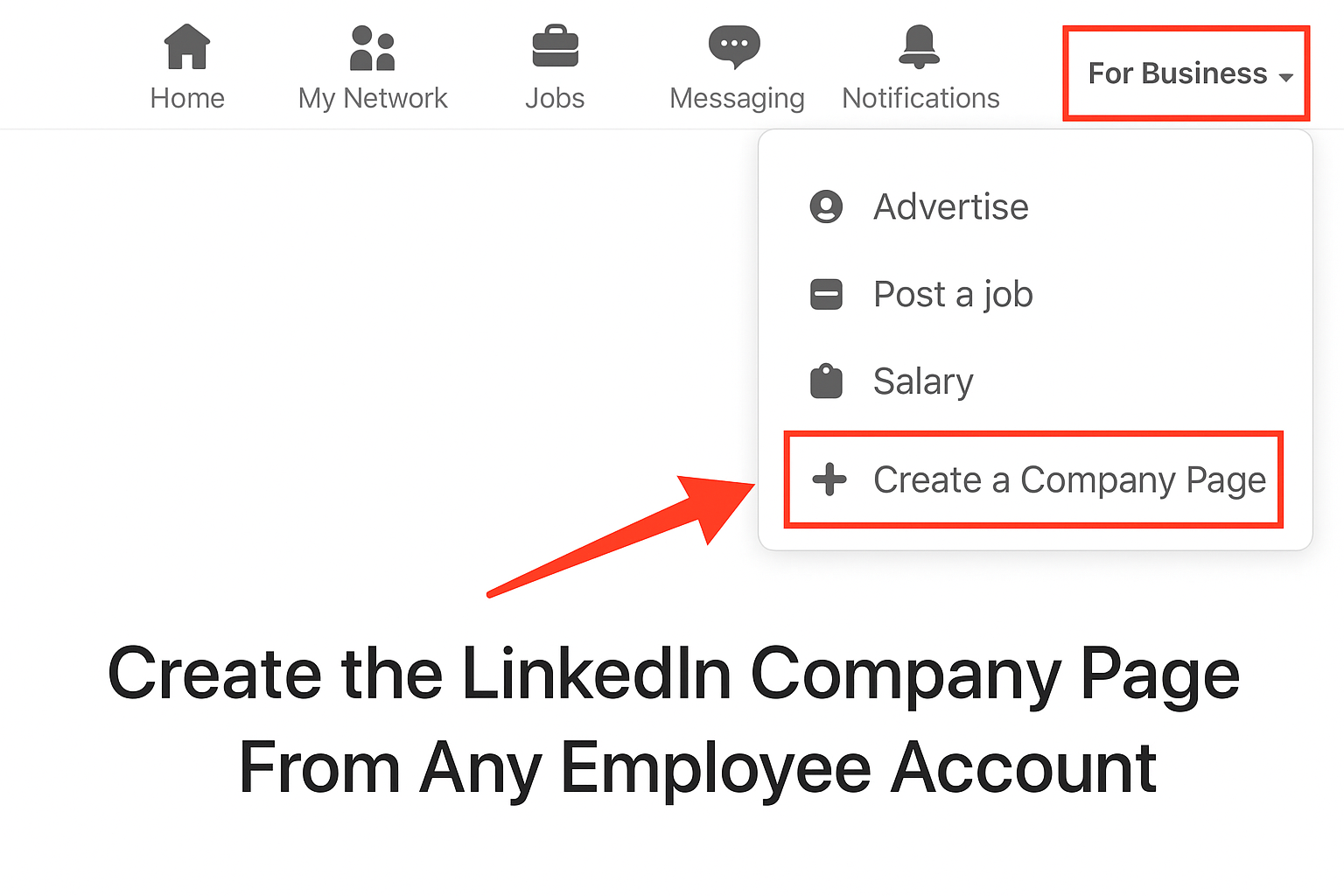
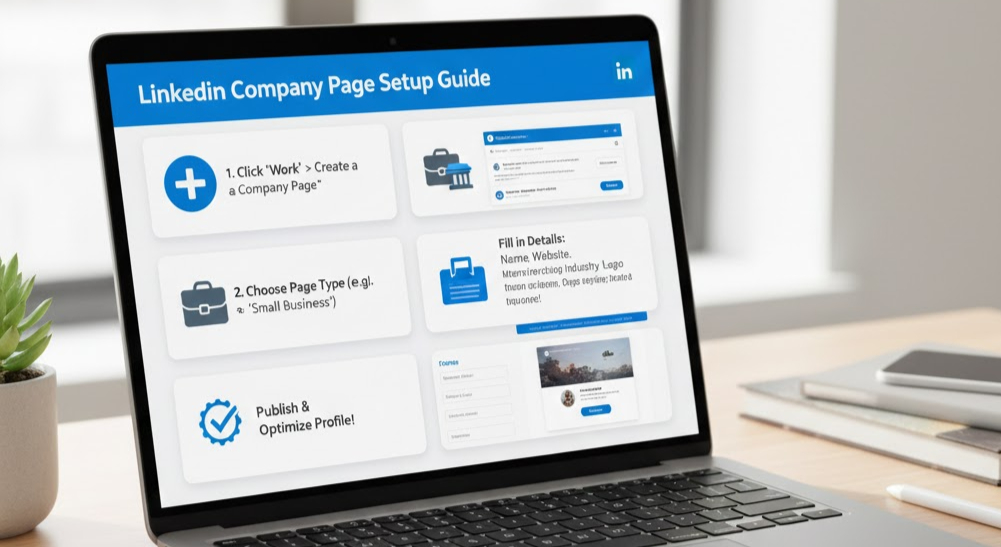
Any verified LinkedIn user can create a Company Page. The steps:
Log in to LinkedIn
Click For Business (top-right corner)
Select Create a Company Page
Choose the correct category (Small Business, Medium/Large, Showcase Page, or Educational Institution)
Fill in all details and publish
At this moment, the creator becomes the first Super Admin, but don’t worry, you’ll fix the “single owner” issue in the next step.
3. Add Multiple Page Admins Immediately
This is the most important part if you want the page to feel corporate rather than personal.
Go to:
Admin Tools > Manage Admins
Add at least 2-3 trusted employees using their corporate email addresses and assign them as:
Super Admins (full control)
Content Admins (post only)
Analysts (analytics only)
This removes the “single point of failure” most businesses face.
4. Clean Up Personal Visibility on the Page
While the page will always be created through a personal account, you can remove or hide any personal connection from public view:
Make sure the “About” section lists only the company’s official contact info
Remove the creator from the Featured Employees list (if visible)
Encourage employees to list the company as their employer so the page appears fully branded
Keep all admin communication and contact details corporate, not personal
This is how agencies create “standalone” pages for clients without appearing on them.
5. Verify Your Company Domain
LinkedIn sometimes requests verification for:
Admin access
Employee listing
Access to ads or careers features
You can verify your domain using:
An email from the company’s domain
DNS verification
Company website confirmation
Instructions here: LinkedIn Domain Verification
Completing this step reduces admin disputes and gives you more control.
Understanding LinkedIn Admin Roles
Here’s a useful YouTube video that explains LinkedIn Page admin roles and the differences between Super Admin, Content Admin, and more:
6. Transfer or Remove the Original Creator Safely
If the person who originally created the page should no longer be involved:
Add multiple Super Admins
Confirm at least one is company management
Remove the original creator under Manage Admins
Only delete their LinkedIn account after confirming admin control is stable
Never delete the creator’s LinkedIn account before removing them as admin, you risk losing access entirely.
Common Problems (And How to Fix Them Quickly)
Here are the issues businesses run into most often:
“LinkedIn says my Company Page already exists.”
This happens when another employee created a page years ago.
Try:
Request admin access directly on the Page
If the admin never responds, contact LinkedIn through the Help Center
Provide proof such as:
Business registration
Domain email
Official documents
“LinkedIn support is slow or giving generic responses.”
Prepare a complete documentation package:
Business license
Screenshot of the Company Page
Proof the admin left the company
Domain ownership verification
Company email proof
Then open a support ticket from multiple verified employee accounts. Consistency helps.
“Personal info from the old admin is still showing on the Page.”
Check:
About section
Contact info
Team listing
Admin list
Update everything to reflect brand-only information.
“I don’t want employees’ profiles linked to the page.”
Employees can list your company as their employer, you cannot block this.
What you can control:
Which employees are Page admins
Who appears as Featured Employees
What contact details are shown publicly
This keeps your Page corporate and clean.
Best Practices to Keep Your LinkedIn Company Page Healthy
Maintain at least two long-term Super Admins
Review admin roles quarterly
Document your LinkedIn posting process
Use a shared company inbox for communication
Set clear rules for ad spend, copy approval, and brand tone
Encourage employee advocacy for organic reach
Post consistently, even once per week dramatically improves growth
If You’re Migrating an Old Page
Do this before anything else:
Transfer all admin roles
Update the About section
Clean up old branding
Notify followers if anything major is changing
Contact LinkedIn support if the old admin is unreachable
Transitioning a page is easier before an employee leaves, not after.
SEO Tips for a Strong LinkedIn Company Page
Use keywords naturally in the About section (your services, location, industries)
Fill out Specialties - they matter more than people think
Add your website as a hyperlink
Use branded and industry hashtags in your posts
Share case studies, hiring posts, company news, and behind-the-scenes insights
Your Company Page can rank on Google if optimized properly.
When You Should Bring in External Help
Consider outsourcing if:
LinkedIn won’t approve admin transfer after multiple support tickets
You’re building a content or ad strategy from scratch
You need an employee advocacy program
You’re managing a reputation or crisis situation
An expert can often resolve admin issues faster because they know how LinkedIn responds.
For more useful insights, visit our blog and follow us on LinkedIn: