LinkedIn Account Restricted? Causes and Fixes (Step-by-Step)

If your LinkedIn account got temporarily restricted (especially soon after you created it), you’re not alone. It’s frustrating, and it’s even worse when you urgently need LinkedIn for internship applications, networking, and your resume.
Let's say, your account created in 2024 got restricted, a failed Persona verification attempt, then a second account getting restricted quickly too, this usually points to LinkedIn’s automated security systems flagging something as “high risk.” That doesn’t necessarily mean you did anything shady. It often means something about your sign-up, login, device, or verification attempts looked unusual.
Let’s break this down in a way that actually helps you move forward.
First: What “Restricted” Usually Means on LinkedIn?
LinkedIn restrictions are often triggered by automated safety checks designed to prevent fake accounts, spam, or identity fraud. Common restriction scenarios include:
New account flagged quickly
Verification loop (“Try again later”)
Trouble creating a support ticket
Second account also restricted (big red flag to LinkedIn’s systems)
A key point: Creating multiple accounts can make restrictions harder to resolve, because LinkedIn may see that as evasion, even if your intent is just “I need access.”
Helpful reference: LinkedIn’s general account access/support pages (start here):
Before You Do Anything Else: Ask Yourself These Questions
These questions help narrow the cause and reduce future flags:
Did you sign up using a VPN or public Wi‑Fi (hostel, campus, café)?
Shared IP addresses can trigger security checks.
Did you use a “new” email domain or temporary email?
Some domains get flagged more often than Gmail/Outlook.
Did you create the second account using the same phone, device, or Wi‑Fi as the first?
LinkedIn can connect these signals.
Did you try multiple verification attempts in a short period?
Too many attempts can cause the “Try again later” cooldown.
Is your profile incomplete or inconsistent (name formatting, location mismatch, etc.)?
Example: “Aman Kumar (Student)” as a name, or random capitalization can sometimes raise flags.
None of these automatically mean you did something wrong. It’s just how automated systems work.
The Biggest Mistake (That’s Easy to Make): Creating Another Account
You already tried this, so I’ll say it gently: avoid making a third account.
LinkedIn’s policies generally expect one person = one account, and repeated new accounts after restriction can look like you’re trying to bypass enforcement. That can turn a temporary issue into a longer one.
If you want to read LinkedIn’s general stance on duplicate accounts and identity-related enforcement, their Help Center is the most reliable source (menus vary by region):
How to Actually Get Unstuck: A Practical Recovery Plan
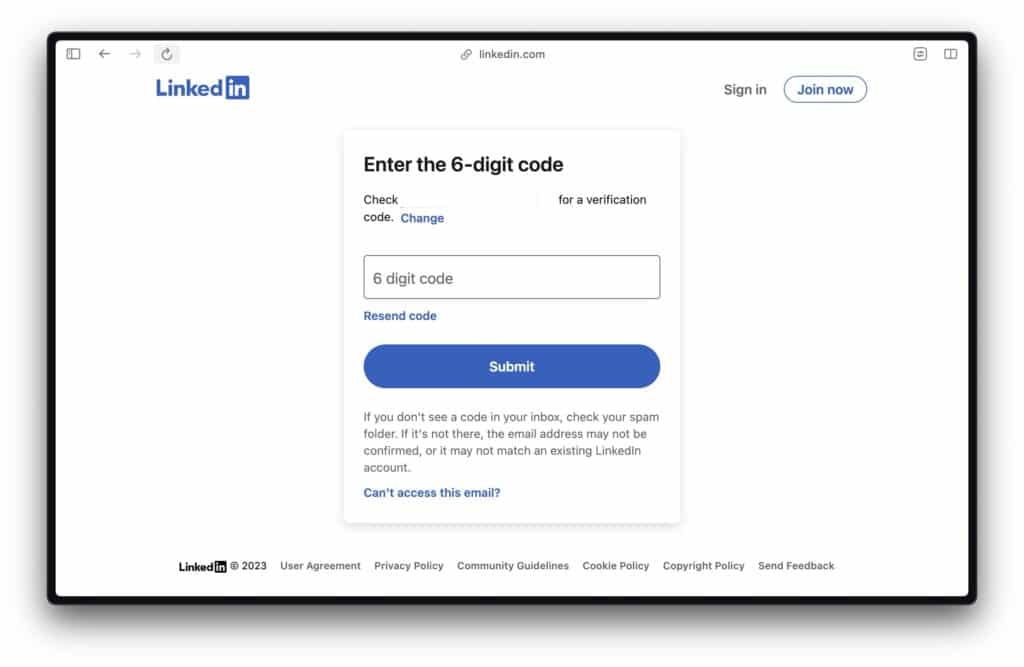
1) Stop “retrying” verification for 24-72 hours
That “Try again later” message often indicates a cooldown. Constant retries can extend it.
Do this instead:
Wait at least 24 hours (sometimes 48–72)
Don’t attempt from multiple devices during that waiting window
Don’t keep refreshing and resubmitting
2) Use one device + one stable network
When you try again:
Use a personal device (not shared)
Use your home mobile data if possible (more stable and less “shared” than public Wi‑Fi)
Avoid VPNs/extensions that mask your device/location
3) Prepare your documents and make the verification “clean”
Persona verification can fail for basic reasons like glare, low light, cropped edges, mismatched names, or unsupported documents.
Before you try again:
Ensure your LinkedIn name matches your ID name (at least closely)
Use good lighting, no glare
Capture the full document edges
Don’t use edited scans if they require a live photo
If you recently changed your LinkedIn name, that can trigger checks, keep it consistent
Persona (the verifier LinkedIn uses in many regions) has general guidance here. And a general help center:
(Exact LinkedIn flows differ by country, but the failure reasons are usually similar.)
4) Use LinkedIn’s official “Account Restricted” / “Can’t access account” flows
LinkedIn typically routes restricted users through a dedicated recovery process. Start from LinkedIn’s Help Center and look for:
“Can’t sign in”
“Account restricted”
Identity verification
Here’s the main entry point again:
If you can still access any screen from the restricted account, take screenshots of:
The restriction notice
Any error codes
The “Try again later” message
Those details can help support.
Support Ticket Problem And How to Work Around It?
If:
You created a ticket using a different email because the restricted one can’t generate it
Support replied that they need the ticket from the restricted email for privacy
That sounds like a standard “we can’t discuss an account unless you prove ownership” policy. It’s annoying, but normal.
Workarounds that sometimes help:
Use the same email that’s on the restricted LinkedIn account when contacting support—even if you’re emailing from outside the logged-in experience.
If LinkedIn provides a form that allows “I can’t access my account,” use that rather than general support.
Include proof signals in your message: profile URL (if you have it), full name on account, approximate creation date, phone number on the account (last 2 digits), and screenshots of the restriction screen.
If you still have your LinkedIn profile URL from old resumes or emails, include it. It usually looks like:
Why X (Twitter) DMs Rarely Work for This?
You’re not imagining it, social media messages rarely fix account restrictions. LinkedIn won’t usually handle sensitive identity/account recovery in public threads or DMs. They’ll push you back to official channels.
What you can do is search LinkedIn Help posts and updates, but don’t expect a direct fix via X.
What to Do While You Wait? (So Your Search Doesn’t Stall)
If your applications are time-sensitive, you can still keep momentum:
Update your resume with a placeholder LinkedIn line: “LinkedIn profile available upon request”
Use alternative proof of work: GitHub, portfolio site, Google Drive portfolio, Notion page
Network via email: Many recruiters respond well to a short intro + resume + portfolio link
Ask your university career center if they can connect you directly to alumni or coordinators
If you want a simple networking approach while LinkedIn is down, this Harvard resource is a good overview of informational interviews:
And if you prefer a video walkthrough on LinkedIn account recovery/general troubleshooting, you can search YouTube for “LinkedIn account restricted fix” and watch recent uploads (policies change a lot year to year). Here’s YouTube search results so you can pick the newest, most relevant one:
https://www.youtube.com/results?search_query=linkedin+account+restricted+fix
If You Get Access Back: Do These Things Immediately (To Prevent a Repeat)
Once you’re back in:
Add/confirm phone number + email
Complete your profile slowly (don’t mass-edit everything in 5 minutes)
Avoid automation tools or aggressive connection requests
Read more on our blog and follow us on LinkedIn: