How Can You Recover a LinkedIn Account After a Long Break?
Have you tried logging back into LinkedIn after months, or even a year away, only to be blocked with identity verification, phone codes, and puzzle-like captchas? If so, you're not alone.
Many return to a “security maze” simply because their account sat dormant or their login attempt looks unusual. This guide explains why that happens, and shows you clear, practical steps to get back in (or gracefully start over), without losing your mind.
Why Does LinkedIn Ask for All This Verification?
Security safeguards. Like many large platforms, LinkedIn increases scrutiny around accounts that appear inactive or display unusual activity different device, location, or login behavior, aiming to block fake accounts, spammers, and potential account takeovers.
Unusual signals. If you attempt login after a long pause, change networks, or reuse an old password, their automated systems may flag this as suspicious.
Stronger platform policies. Over time, LinkedIn’s verification and account-security policies evolve. What used to pass might now trigger extra checks.
Should You Try to Recover Old LinkedIn Account?
Ask yourself:
Do you still own the email linked to your old profile?
Do you still have the phone number associated with it (if you had SMS verification)?
Do you have any backup info (old password, notes, email archives)?
If you can answer “yes” to at least one, it’s usually worth trying recovery. Losing access doesn’t always mean losing everything.
If it seems unlikely you’ll regain access, then rebuilding a fresh profile may be the more realistic choice.
Step-by-Step: How to Get Back Into a Locked or Verified LinkedIn Account
1. Start with the “Forgot password?” flow
Use the email you originally registered with. Be sure to check spam/junk folders if you don’t see the reset link right away.
If that doesn’t work and you previously attached a phone number, try recovering via SMS, an option LinkedIn often provides.
2. Tackle the verification process with care
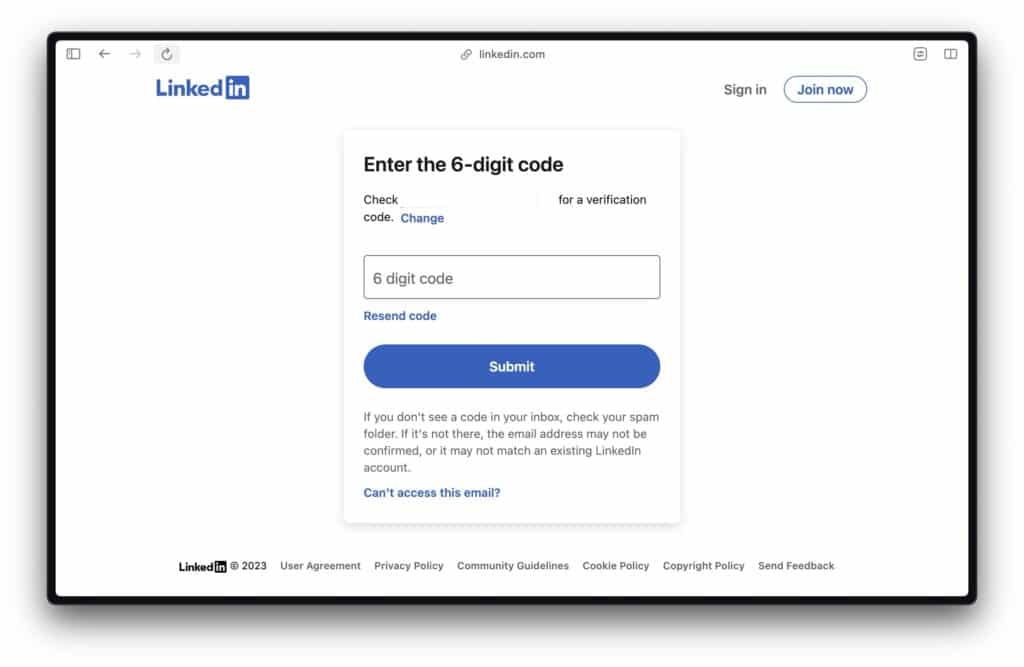
If LinkedIn asks you to identify yourself (photo-ID, captcha, image puzzles, etc.), go slow and deliberate. If images don’t load, clear your browser cache or try a different browser or device.
3. Use a familiar device and network if possible
If you last used LinkedIn from a specific laptop, phone, or Wi-Fi network, that can make recovery smoother. Logging in from a familiar environment helps avoid extra “suspicious activity” triggers.
4. If you set up Two Factor Authentication, use it, or request alternate verification
If you previously enabled two-factor authentication (2FA), use that method. If no longer available, check whether LinkedIn offers a backup option (email code, recovery link, etc.).
5. As a last resort, go through LinkedIn’s official support channels (carefully)
If you can’t recover via password or phone, look for LinkedIn’s official identity-verification or account-recovery form. Only submit using LinkedIn’s real support pages, never through third-party “help” sites.
Here is the link to contact support without having to sign in: https://www.linkedin.com/help/linkedin/ask/sdsupport
Be clear, concise, and truthful in your request: provide your email, username, approximate last active date, and steps you’ve already tried. Patience is key, these things can take time.
If all else fails, consider starting a new account, but rebuild thoughtfully
Watch How Others Did It
Common Problems & Smart Fixes
Problem | What to Try |
“I didn't receive a verification code” | Try a different network, request a new code, or reach out to your mobile provider if SMS seems blocked. |
“I'm stuck in a loop of image-puzzles or captchas” | Clear browser cookies and cache, or switch to a different browser or the LinkedIn mobile app (which sometimes handles verification more smoothly). |
“Support isn’t responding” | Wait a few days, then send a single polite follow-up, no spamming. Re-submit only via official forms. |
“They want my ID” | Only submit via verified LinkedIn support forms, never via third-party or suspicious sites. Blur or cover unnecessary details if allowed. |
Once You’re Back In: Lock Down Your Account for Good
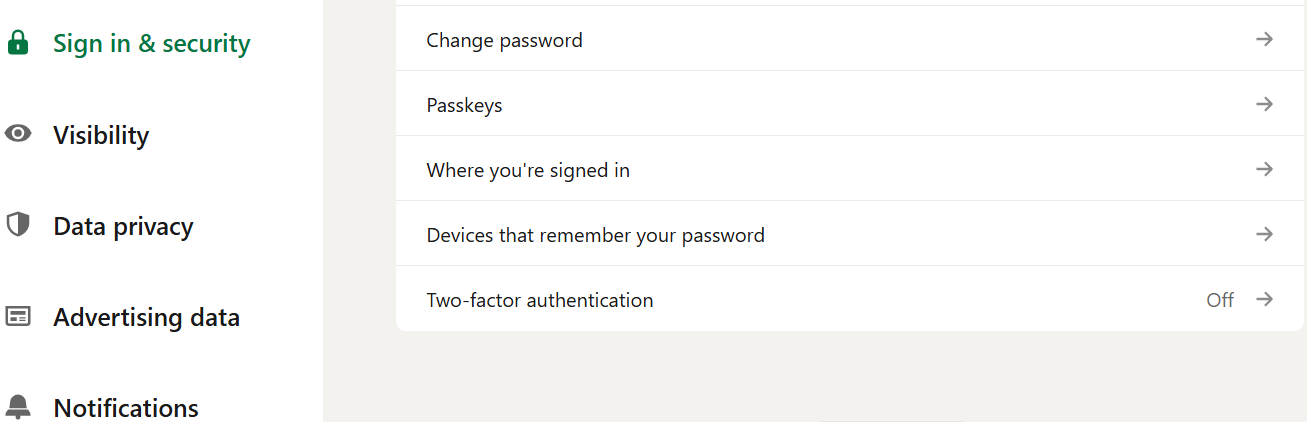
Sign In & Security
Set a strong, unique password and store it in a password manager.
Enable 2FA , ideally via an authenticator app, not just SMS.
Add a recovery email and keep your phone number updated.
Review “Authorized Devices” / “Active Sessions” and sign out of any you don’t recognize.
Review privacy settings, especially who can view your email or phone number.
This reduces the chances you’ll be locked out again, and helps you recover faster if you are.
Before You Dive In, Ask Yourself These Honest Questions
Do you really need to recover the old account, or is starting fresh acceptable?
Do you have enough information (email, phone, old login data) to make recovery likely?
Do you have time to wait for support responses, or do you need immediate access for a job search or networking push?
Is there any content or important connection list on the old profile worth preserving?
Answering clearly will guide you toward the option that makes sense.
If Recovery Fails: Building a Fresh, Thoughtful Profile
If recovery doesn’t work out, here’s how to start anew (without losing too much momentum):
Use a professional photo, fill out your profile completely, and verify email + phone as soon as possible.
Add a note in your summary or headline, e.g. “New account after login issues, previously worked as … feel free to reconnect.” That helps old contacts recognize you.
Reconnect with known contacts manually, maybe send a short personal message reminding them you’re back.
Treat the fresh account as a chance to rebuild cleanly, with stronger security from day one.
Useful Link
Final Thought
Getting locked out of LinkedIn after a long break can feel overwhelming, but in many cases, it’s just a hiccup. By following the steps above with care, you’ll often get back in without losing much. And if recovery doesn’t work, building a new account, can be a fresh start.
Many users feel trapped when they see verification screens or account-restriction warnings. But a careful, patient approach, combined with good security habits, often gets you back in and protects your profile for the future.
For more useful insights, visit our blog and follow us on LinkedIn: