How Can You Finally Stop LinkedIn Emails Once and for All?
If you’re anything like me, those relentless LinkedIn emails can drive you absolutely crazy. You unsubscribe once, maybe twice, but somehow the notices keep piling up. But you don’t have to live like that. In this post, I’ll walk you through why LinkedIn might still be emailing you, show you how to turn off most of the noise forever, and share a ready-to-use message template for contacting LinkedIn support. By the end, you’ll have clear control over what lands in your inbox.
Why LinkedIn Emails Keep Coming, Even After You Unsubscribe
There are a few reasons LinkedIn might keep emailing you, even if you thought you opted out:
“Unsubscribe” only covers marketing messages. Emails triggered by account activity, think security alerts, password resets, payment receipts, or even certain notifications, aren’t covered. These are considered “transactional” or “service” emails that LinkedIn still sends.
Multiple accounts or email aliases. If you ever had more than one LinkedIn account, or use email aliases (e.g. name+work@domain.com) or forwards, you might be targeting the wrong address when you unsubscribe.
Different notification sources. Company pages you manage, group activity, updates from people you follow, all can trigger emails that bypass the marketing-unsubscribe link.
Someone else’s activity. If another user sends you an invite or a message, LinkedIn treats that as part of its service delivery and sends you a notification.
Glitches or delays. Sometimes unsubscribe requests aren’t processed immediately, or there’s a technical hiccup.
What You Should Do Right Now: A Step-by-Step Guide
Check the emails more carefully
Open one or two of the unwanted emails. Are they from @linkedin.com?
Scroll to the bottom and see if there’s an unsubscribe link, or any mention of “transactional” vs “marketing.” This will give you clues about what type of email it is.
Use LinkedIn’s built-in settings, the right way
Log into LinkedIn on a desktop browser.
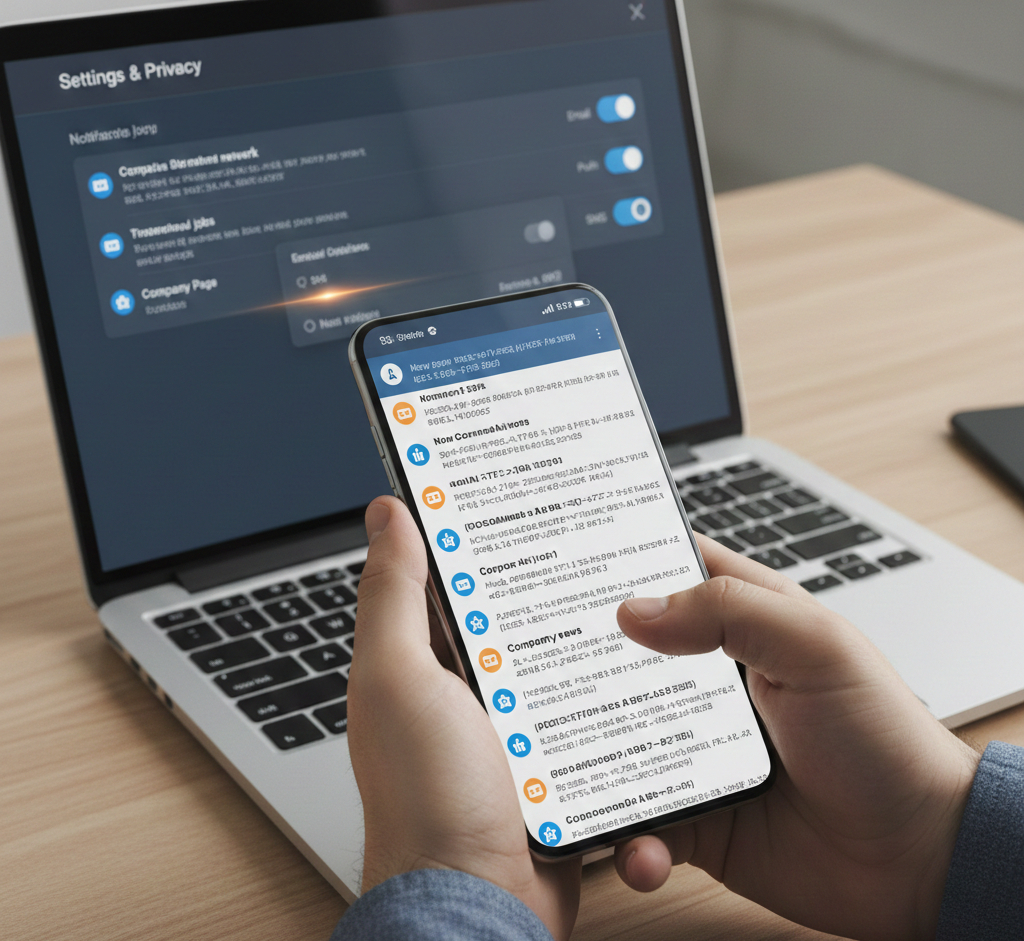
Click the Me icon > Settings & Privacy > Notifications.
Browse through each category (Messages, Invitations, Network updates, Newsletters, Product updates, etc.) and toggle off “Email” (or set frequency to “No email”).
Don’t forget to check company-page admin settings if you manage any. Sometimes those send alerts too.
Look for other active accounts
Think if you ever signed up with another email address.
If you used an alias (e.g. yourname+work@domain.com) or a forwarded address, double-check those inboxes.
Track down emails from related services or third-party tools
Sometimes, LinkedIn-related emails come from platforms for events, courses, or newsletters. These may have their own unsubscribe controls.
Use your email client to filter or archive
As you clean up, create an email rule or filter: e.g., “If sender contains @linkedin.com, archive immediately.”
Alternatively, mark repeat senders as spam, mail providers often learn and automatically divert future messages.
Do a “clean unsubscribe” round
If you spot a marketing email, open it and click the unsubscribe link.
Wait a week or two; give the system time to fully refresh your preferences.
What If Unwanted Emails STILL Keep Coming Even After Stopping LinkedIn emails?
If you’ve followed the steps above and still see unwanted emails:
Screenshot examples (with headers and unsubscribe links).
Contact LinkedIn Support:
In LinkedIn, go to Help Center > and scroll all the way down till you find Contact Us.
Use a short, clear message like the template below.
Subject: Persistent emails despite unsubscribe
Hi LinkedIn Support, I unsubscribed from email notifications for my account (email: your.email@example.com) on [date], but LinkedIn emails won't stop, including [example subject lines/dates]. I’ve confirmed the unsubscribe link is present in the emails and I’ve clicked it. Please confirm:
- Which categories of emails remain enabled for my account, and why.
-That my account is removed from marketing/optional email lists.
- How to stop non-essential notifications entirely (excluding required security/security-related messages). I’ve attached screenshots of recent emails including headers. Please respond with next steps.
Thanks,
[Your name]
If you don’t get a response, consider escalating:
In regions under jurisdictions like the UK, you can refer to privacy or data protection regulations (e.g. Information Commissioner’s Office (ICO)).
As a last resort, you could change the email associated with your LinkedIn account, ideally to one you rarely check, though this is a heavy-handed workaround.
Visual Walkthrough (Video)
This quick guide walks you through exactly how to unsubscribe and turn off LinkedIn notifications, in under 5 minutes. It’s a great visual companion if you’d rather follow along step-by-step than read.
What You Should Know: What Unsubscribing Does, And Doesn’t Do
Marketing emails, newsletters, updates - you can opt out of nearly all these.
Invitations, in-platform notifications, push notifications - you can often switch them from email to in-app or turn off entirely.
Transactional messages: security alerts, payment receipts, legal updates - generally cannot be opted out of, and shouldn’t be; they’re part of LinkedIn’s core service.
Third-party services or company-admin alerts - may still bother you, unless you also adjust their settings or opt out there.
For Marketers or Administrators: Avoid Being “That Annoying Company”
If you run outreach or manage a company page on LinkedIn, take this as a friendly heads-up:
Always start with clean, opted-in contact lists.
Provide clear unsubscribe links.
Respect frequency - don’t bombard people with repeated, unwanted messages.
Configure your company-page/email settings carefully so you don’t get double-notified.
If done well, you’ll keep your brand’s reputation intact, and avoid annoying your audience.
Final Thoughts
You shouldn’t have to suffer under a barrage of unwanted messages just because you tried a simple unsubscribe once. With a little digging, using the right settings, and maybe a firm follow-up, you can reclaim your inbox.
If you’re ready: log in, go to Settings > Notifications > turn off what you don’t need. Give it a week.
If something still slips through, reach out to LinkedIn Support with your screenshots.
For more useful insights, visit our blog and follow us on LinkedIn: