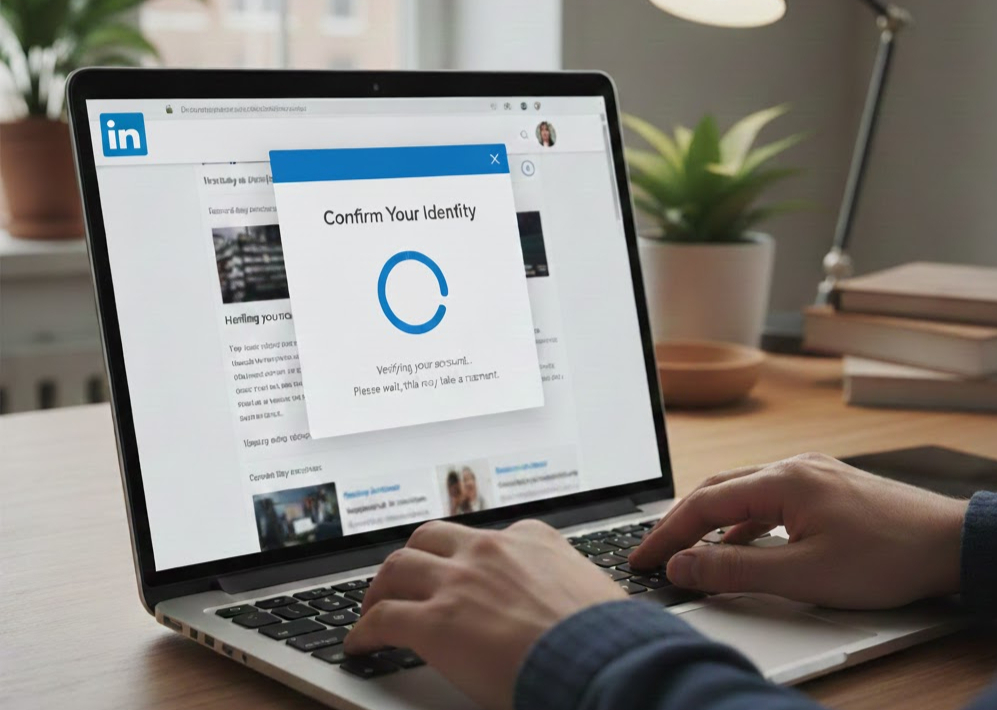
Few things are as annoying as trying to sign in to LinkedIn only to be thrown into a “verify > confirm > log in > verify again” loop. No matter what you click, the platform won’t let you in. It keeps sending security codes, asking for identity checks, or even bouncing you to the Persona verification page over and over again.
This frustrating cycle, known as the LinkedIn login loop, is extremely common. The good news:
it’s almost always fixable with the right combination of device, browser, and verification resets.
This guide breaks down why the loop happens, the exact steps to escape it, what to prepare if you need to escalate to LinkedIn, and how to protect yourself from getting locked out again.
What’s Actually Causing the LinkedIn Login Loop?
LinkedIn isn’t trying to torture you, it’s trying to confirm your identity. When something in the login flow doesn’t match LinkedIn’s security expectations, the platform forces repeated verification attempts.
Here’s what commonly triggers the loop:
1. Authentication method mismatch
If your authenticator app, SMS number, backup codes, or email verification don’t match the expected source, LinkedIn rejects the session.
2. Cookies or browser session issues
Stale cookies, corrupted session files, or blocked scripts can prevent LinkedIn from “saving” the fact that you verified successfully.
3. Persona verification session not updating
Persona may confirm your identity, but the redirect back to LinkedIn fails, leading you right back into another verification attempt.
4. VPNs, ad blockers, or privacy extensions
These often break LinkedIn’s login scripts or block the redirect from working properly.
5. LinkedIn backend bugs
Yes, it happens more often than LinkedIn admits. During certain updates, login loops spike globally.
Before Escalating: Try These Fast Fixes First (They Solve Most Cases)
1. Switch Devices AND Networks
LinkedIn ties session validation to device identifiers and IP addresses.
Try:
Using the LinkedIn mobile app on mobile data
Switching from home Wi-Fi to hotspot
Using a second laptop or tablet
If cookies or IP mismatch triggered the loop, this often breaks you out immediately.
2. Try an Incognito / Private Window
This avoids:
Cached login sessions
Conflicting cookies
Stored redirect states
Chrome: Ctrl + Shift + N Safari: File → New Private Window Firefox: Ctrl + Shift + P
Now try logging in fresh.
3. Clear LinkedIn Cookies (ONLY LinkedIn)
You don’t need to wipe your whole browser, just LinkedIn.
Chrome: Settings > Privacy > Cookies > See all cookies > search “Linkedin” > remove only those cookies.
Then reload linkedin.com
4. Turn Off VPN, Ad Blockers, and Privacy Extensions
Tools like:
uBlock
Ghostery
DuckDuckGo privacy extension
Brave shields
Browsec
NordVPN browser extension
…often break LinkedIn’s login redirects.
Disable them temporarily > refresh > try again.
5. Verify Your Authenticator App
If you use 2FA:
Make sure you’re using the correct account in Google Authenticator/Authy/Microsoft Authenticator
If you changed phones recently, confirm the 2FA key was restored
If you saved backup codes, try one now
Backup codes bypass the loop entirely and let you reset authentication from inside the account.
6. Use SMS Instead of the Authenticator
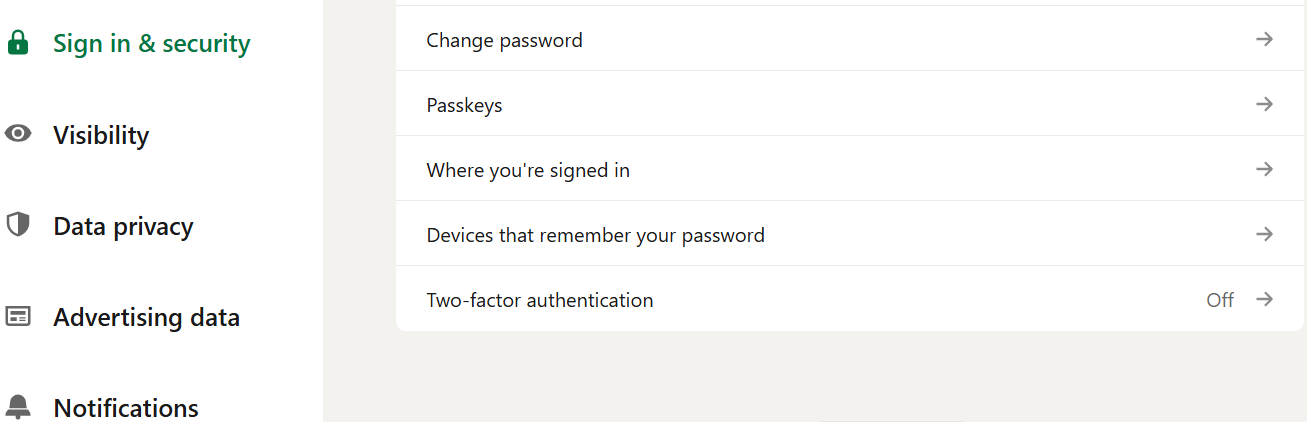
If LinkedIn gives the option, choose SMS.
If your phone number is outdated or unreachable → you'll need to escalate using the steps below.
What If Persona Verification Works But LinkedIn Still Loops?
This is one of the most common patterns.
Persona is a third-party identity service LinkedIn uses for ID verification. Sometimes Persona completes successfully, but LinkedIn fails to update the session.
Try these:
After Persona confirms, DO NOT click “Back.”
Instead, open a brand-new incognito window and type: linkedin.com
Wait 10 -15 minutes.
LinkedIn’s backend sometimes needs time to refresh security flags.
Use a different browser IMMEDIATELY after Persona
Chrome → Safari Safari → Firefox Firefox → mobile browser
This bypasses the broken session state that caused the loop.
Check This YouTube Video:
If You Can’t Log In to Submit a Ticket, Use These Public
Support Paths
LinkedIn requires login for many support forms, which is impossible when you’re locked out. Instead, use these:
1. LinkedIn Help Center (non-login flow):
Search Google for: LinkedIn account access form or LinkedIn recover account
Look for forms that do not require login.
2. Twitter (X):
DM or mention @LinkedInHelp They respond within hours to 2 days.
3. LinkedIn’s Facebook Page:
Yes, they use Messenger for support. You already tried, monitor for follow-up.
4. LinkedIn Safety Form:
This sometimes bypasses login requirements; search: LinkedIn safety verification form
Information to Prepare Before Contacting Support
Have these ready:
Account email
Your profile URL (if you know it)
Screenshots of the login loop
Steps you already tried
Whether Persona was completed
Phone number tied to the account
Any alternate or backup emails
Rough date/time of your last successful login
Support replies move MUCH faster if you provide everything upfront.
Template to Send to LinkedIn Support
Subject: Unable to access account due to LinkedIn login loop
Message:
Hi LinkedIn Support, I’m stuck in a login loop where LinkedIn repeatedly asks me to verify my identity but never completes the login. I've tried multiple devices, private windows, clearing cookies, and both SMS and authenticator verification. Persona verification completed successfully, but I’m still being redirected back into the loop. Screenshots and my account email are attached. Please help restore access to my account.
Thank you,
[Your Name]
[Your Email]
[Your LinkedIn URL (if available)]
Important Questions for You to Review
These help diagnose the next steps:
Do you still have access to the phone number on the account?
Did you switch phones or reinstall the authenticator app recently?
Is this a personal account or company-managed account?
Do you have stored backup codes from LinkedIn?
Did you recently enable or change 2FA?
Your answers determine whether the issue is identity verification, cookies, or a locked 2FA session.
If Nothing Works
Keep record of all ticket numbers and timeline
This helps when escalating.
Follow up every 48-72 hours
Consistency gets faster results.
Post a polite public escalation on Twitter tagging @LinkedInHelp
Do NOT include personal information.
If mission critical, hire a LinkedIn experienced agency
Teams like EXEED Digitals handle:
Verification cases
Locked accounts
Persona loops
Full communication preparation for LinkedIn Trust & Safety
This saves time if you need fast account recovery.
Final Thoughts
A LinkedIn login loop feels like being locked out of your own digital identity, but in most cases, you can break out of it with the right mix of device changes, cookie resets, authentication adjustments, and identity verification.
If the loop persists, gather your evidence and escalate through LinkedIn’s help channels. Most locked-out users regain access once LinkedIn clears the session or re-validates their identity.
For more useful insights, visit our blog and follow us on LinkedIn: