Can You Message a LinkedIn “Open Profile” Without Burning InMail Credits?
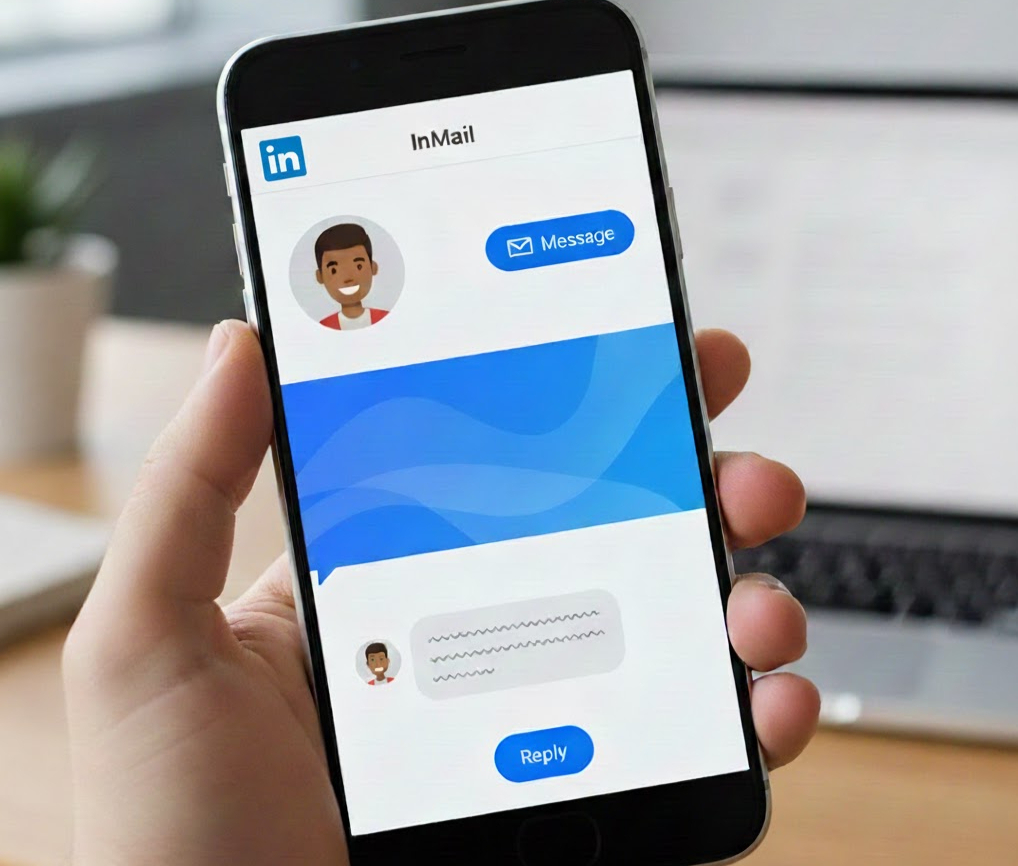
If a LinkedIn user has enabled Open Profile, you can message them directly, no InMail credit required. What changes sometimes is how LinkedIn’s interface behaves. Depending on what product line you’re using (free LinkedIn, Premium, Sales Navigator, etc.) and how you access the profile (desktop - search results, CRM integration, mobile, browser extension), the UI might still show “Send InMail” instead of “Message,” even if that person is open to free messages. In other words: the system might make it look like you need credits, but if they’ve opted into Open Profile, you actually don’t.
What “Open Profile” and “InMail Credits” Mean
Open Profile: A setting available to LinkedIn Premium users that, when turned on, allows any LinkedIn member to send them a message for free, even if they’re not connected.
InMail credits: These are part of LinkedIn’s paid plans (Premium, Sales Navigator, Recruiter). When you message someone who is not a 1st-degree connection and does not have Open Profile enabled, that message uses up one of your InMail credits.
So, if the person’s profile is open, you don’t need to spend a credit. If it isn’t, you do (unless you connect or find another free channel).
Why Sometimes LinkedIn Still Shows “Use InMail”, Even for Open Profiles
Even when a profile is open, you might see the “Use InMail” prompt. Here are common reasons why that happens:
Interface quirks or UI differences, The way you landed on the profile (search result, CRM tool, LinkedIn extension, mobile vs desktop) can affect which buttons appear.
Product segmentation, If you’re on a plan like Sales Navigator or using a third‑party tool, the messaging flow might default to using that plan’s InMail bucket instead of free Open Profile messaging.
A/B testing / feature rollout, LinkedIn testing different UI versions can cause inconsistent behavior between users or sessions.
Cache / browser / extensions - Ad blockers, privacy tools, cache issues can interfere with correct rendering, making free messages appear like InMails.
Profile actually not open - Sometimes “Open Profile” was disabled, or was never enabled. The absence of the label doesn’t always indicate the profile is closed, but if you don’t see any “Message / Free Message” option, don’t assume you have free access.
Because of these variables, it’s easy to get misled, even though the underlying logic remains constant.
What You Can Do
If you want to message someone and avoid wasting InMail credits, here’s a straight‑forward approach:
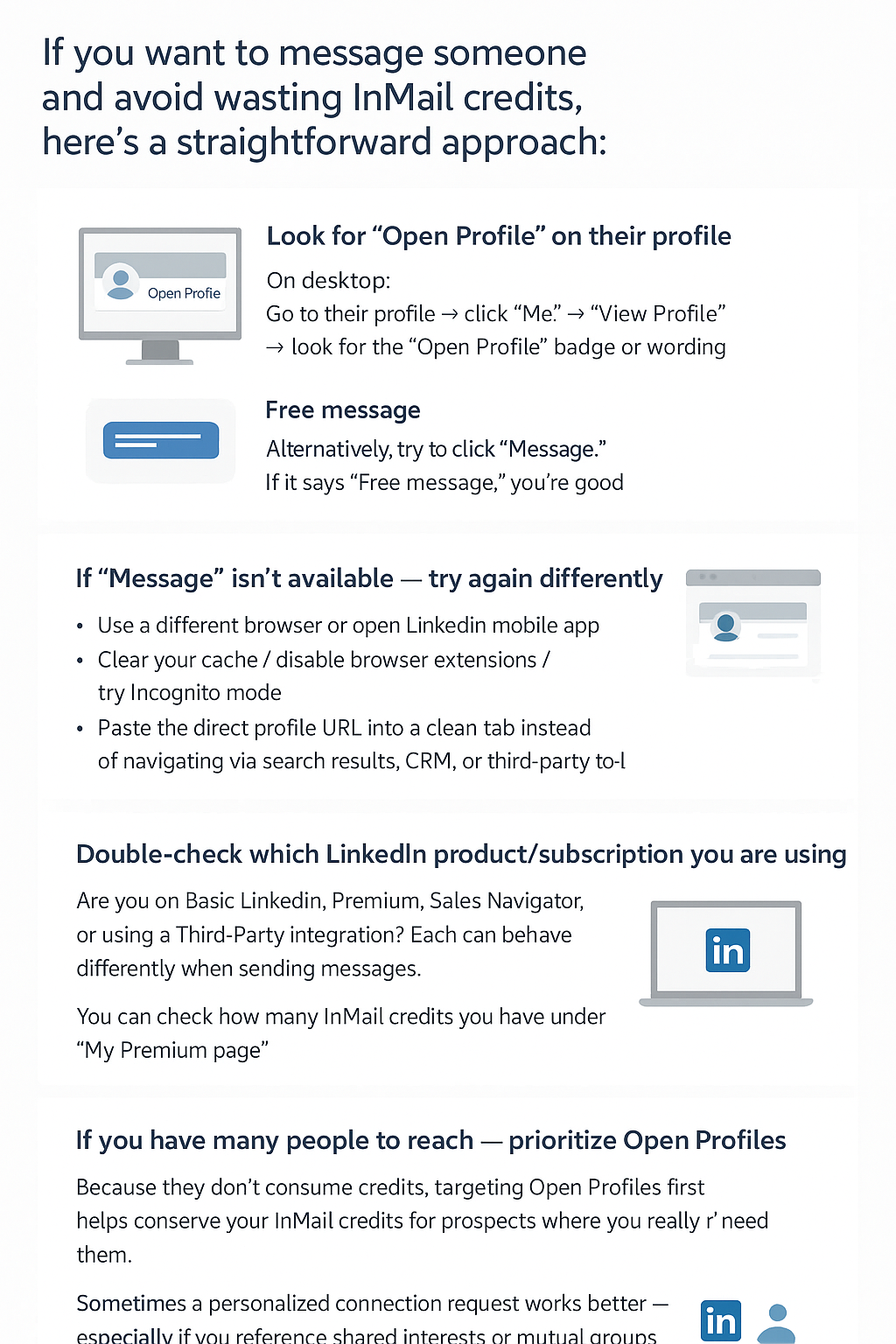
Look for “Open Profile” on their profile
On desktop: Go to their profile > click “Me” > “View Profile” > look for the “Open Profile” badge or wording.
Alternatively, try to click “Message.” If it says “Free message,” you’re good.
If “Message” isn’t available, try again differently
Use a different browser or open LinkedIn mobile app.
Clear your cache / disable browser extensions / try Incognito mode.
Paste the direct profile URL into a clean tab instead of navigating via search results, CRM, or third‑party tool.
Double‑check which LinkedIn product/subscription you are using
Are you on Basic LinkedIn, Premium, Sales Navigator, or using a Third‑Party integration? Each can behave differently when sending messages.
You can check how many InMail credits you have under “My Premium page.”
If you have many people to reach, prioritize Open Profiles
Because they don’t consume credits, targeting Open Profiles first helps conserve your InMail credits for prospects where you really need them.
If you can’t message, resort to connection request first (with a note), group‑message, mutual intro or alternate contact method
Sometimes a personalized connection request works better, especially if you reference shared interests or mutual groups.
If you see someone in a same group or attending the same event, messaging through those shared spaces is often free.
Keep track of your InMail usage and response behavior
InMail credits renew monthly but are limited. You can see your balance under “My Premium.”
InMail credits are refunded if the recipient responds within 90 days, so crafting messages that encourage replies is smart outreach strategy.
If after all this the interface still pushes InMail, even though profile says open, it’s likely a bug or account related anomaly. In that case, capturing screenshots and contacting LinkedIn Support may be your best bet.
Watch This: How InMail and Open Profile Work (in 2025)
When to Worry, and When It’s Just UI Confusion
You only need to start worrying if:
You’ve tried different browsers / devices / clean sessions and still get prompted for InMail.
Your colleague on the same profile doesn’t see that prompt when messaging the same person.
The profile was once open but seems to have turned closed, meaning the person disabled Open Profile.
If none of the above apply, odds are you’re experiencing nothing more than UI confusion.
Useful Resources
https://dripify.com/what-is-linkedin-inmail/
Final Thought: Open Profile Works, It’s Often LinkedIn That Doesn’t
Yes, when a profile on LinkedIn is legitimately “Open Profile,” you should be able to message them without burning InMail credits. The problem isn’t with the concept, it’s usually with how LinkedIn displays that concept.
So next time you see “Send InMail” on a profile, pause. Try a different browser or clean tab.
Double check profile settings. You might find that you don’t need to spend a credit after all.
For more useful insights, visit our blog and follow us on LinkedIn: