Why Does LinkedIn Ask for a Security Check Code but Never Send It?
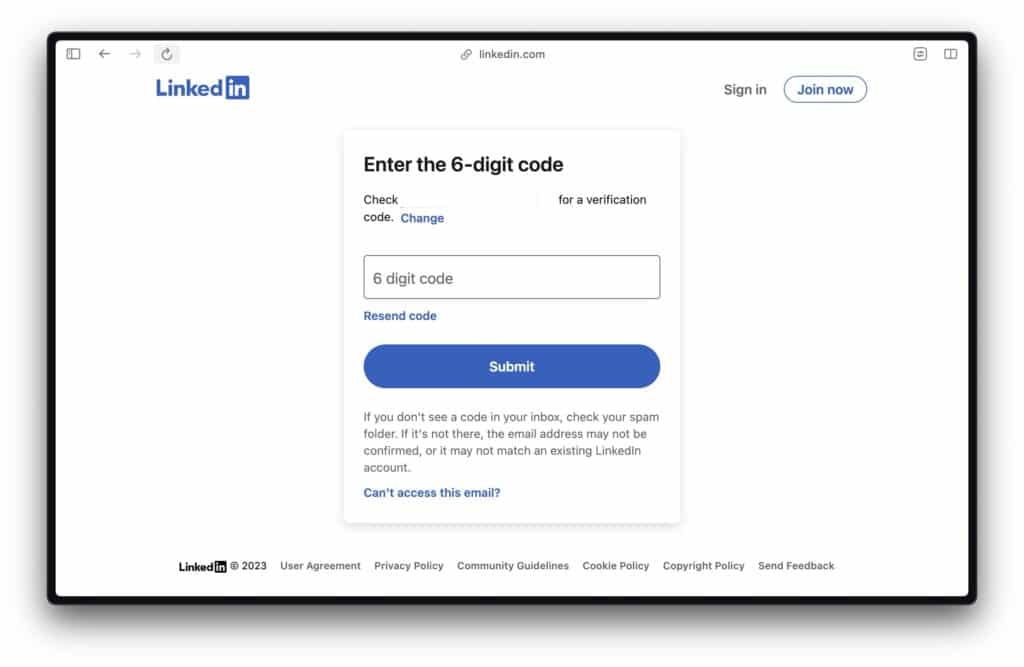
If LinkedIn is asking you for a security verification code, telling you to check your email, and then never actually sending anything, you’re not imagining it. It’s one of those issues that feels small on paper but can completely block you from using your account. And when you’re trying to apply for jobs, reply to a recruiter, or manage your professional profile, that kind of login loop gets frustrating fast.
The short version: LinkedIn usually triggers these checks because it detects a login attempt it thinks might be unusual. That can happen even when it’s really you. The bigger problem is when the code email doesn’t arrive at all, arrives late, or gets filtered somewhere you’re not seeing it.
So let’s break it down in a way that’s actually useful.
Why LinkedIn Asks For A Security Code in The First Place?
Even if you know your password, platforms like LinkedIn sometimes ask for a second step. This is basically a form of identity verification.
It’s meant to protect accounts from:
Logins from a new device
Logins from a new location or IP address
Too many failed password attempts
Automated or suspicious activity
Changes to browser settings, VPN usage, or privacy tools that make your login look unfamiliar
So if you’re wondering, “Why do I need a code if I already entered the right password?”, that’s the answer. LinkedIn is treating the login as higher risk. Annoying, yes, but not random.
You can read more about LinkedIn’s account access and verification flows on their official help pages here: LinkedIn Help Center.
Why The Code Might Never Show Up In Your Inbox?
This is usually where things fall apart. The code may have been generated, but that doesn’t mean it lands where you expect.
A few common reasons:
Spam or junk filtering: The email gets filtered automatically.
Promotions or updates tab: If you use Gmail, it may land outside your main inbox.
Email delay: The message comes through late, after the code has expired.
Wrong email address on file: Your LinkedIn account may be tied to an old email you no longer check.
Corporate email restrictions: Work or school email systems sometimes block automated security emails.
Mailbox sync issues: Your email app may not be updating properly.
It’s also possible LinkedIn’s email system is temporarily delayed. That’s not unheard of with large platforms.
What Should You Check First?
Before trying complicated fixes, start with the obvious stuff. Seriously, a lot of people solve it here.
Search your inbox for terms like LinkedIn, security code, or verification.
Check spam, junk, promotions, social, archive, and trash folders.
Wait at least 5 to 10 minutes before requesting another code.
Make sure you’re checking the correct email account.
Avoid requesting too many codes back-to-back, because sometimes that causes confusion with which code is current.
A useful general guide on email deliverability and why important emails go missing can be found here: Gmail Help: Find missing emails.
If The Code Still Isn’t Arriving, Try These Practical Fixes
Here’s the part that matters most. If you’re locked out, these are the steps worth trying:
1. Try A Different Browser or Device
Sometimes LinkedIn’s login flow behaves differently depending on browser cookies, extensions, or saved sessions.
Try logging in through:
A private/incognito browser window
A different browser entirely
The LinkedIn mobile app instead of desktop
A different device, if available
2. Turn Off Your VPN Temporarily
If you use a VPN, proxy, or privacy relay, LinkedIn may think the login attempt is suspicious. Turning it off for the login attempt can sometimes stop the extra verification request or help the email process work more normally.
3. Clear Cache And Cookies
Old session data can interfere with account access. Clearing your browser cache and LinkedIn cookies can reset the login state.
4. Make Sure Your Email Provider Isn’t Blocking LinkedIn
If you use a custom domain, work email, or school email, the server may be filtering LinkedIn emails before they reach your inbox. If possible, check email rules, blocked senders, or ask your IT admin.
5. Use LinkedIn’s Account Recovery Options
If the email route is failing, go directly to LinkedIn support and recovery options. Start here: LinkedIn Account Access Support.
Questions Worth Asking Yourself
When this issue keeps happening, a few questions can help narrow it down:
Are you trying to log in from a country, network, or device you don’t normally use?
Did you recently change your password or email address?
Is your LinkedIn account attached to an email account you no longer actively monitor?
Are you using browser extensions that block scripts, trackers, or popups?
Do you have two-factor authentication already enabled through another method?
These questions matter because the issue isn’t always “LinkedIn didn’t send it.” Sometimes the platform is sending it to the wrong place, or your setup is making the login look risky enough that the verification keeps repeating.
What If You Urgently Need LinkedIn For Job Searching?
This is the part that makes the whole thing feel especially unfair. People rely on LinkedIn for job applications, networking, recruiter messages, and visibility. If your account is locked behind a missing code, you lose access to all of that at the worst possible time.
If that’s where you are right now, a few temporary workarounds may help:
Apply to jobs directly on company websites when possible
Use your email or portfolio site to stay reachable
Reconnect with recruiters through other channels if you already have their contact details
Keep a copy of your resume and experience history outside LinkedIn
This doesn’t solve the login problem, but it reduces the damage while you recover access.
Can You Prevent This From Happening Again?
Usually, yes, at least to some extent. Once you get back in, it’s worth tightening things up so you’re less dependent on a single email code.
Add and verify a current email address you actually use
Add a backup email if LinkedIn allows it
Enable a more reliable two-step method if available, such as an authenticator app
Update your phone number
Avoid logging in from too many unfamiliar networks in a short time
Keep your browser and app updated
For a general explanation of multi-factor authentication and why companies use it, this overview from CISA is helpful: CISA: Use Multi-Factor Authentication.
Final Thoughts
If LinkedIn keeps asking for a security code and never sends it, the most likely explanation is not that you did something wrong. It’s usually a mix of automated account protection, email filtering, login environment changes, or account recovery friction. That doesn’t make it less frustrating, but it does mean there are a few logical places to troubleshoot.
The best approach is to slow down, check every possible inbox location, avoid spamming code requests, try another browser or device, and use LinkedIn’s official recovery channels when the normal path fails. If you rely on LinkedIn for work, hiring, or brand visibility, it’s also a good reminder not to depend on one login method alone.
Read more on our blog and follow us on LinkedIn: