If you've ever found yourself locked out of LinkedIn or unable to create an account in the first place, you know how frustrating it can be—especially when you need access urgently.
The silver lining? LinkedIn offers a direct support channel that doesn't require you to be signed in.
You can reach LinkedIn Support without logging in by visiting this dedicated support page.
This is a game-changer for anyone dealing with account creation problems, login failures, or other issues that prevent them from accessing their account in the first place.
Why This Matters: The Real-World Problem
Many organizations rely on LinkedIn Learning for employee development and training.
Your employees need functioning accounts to access these resources, but what happens when someone can't create an account or gets locked out? Traditional support channels often require you to be logged in, creating a catch-22 situation.
One of your own employees experienced exactly this—unable to create and log into an account, with no obvious way to get help.
This scenario is more common than you'd think.
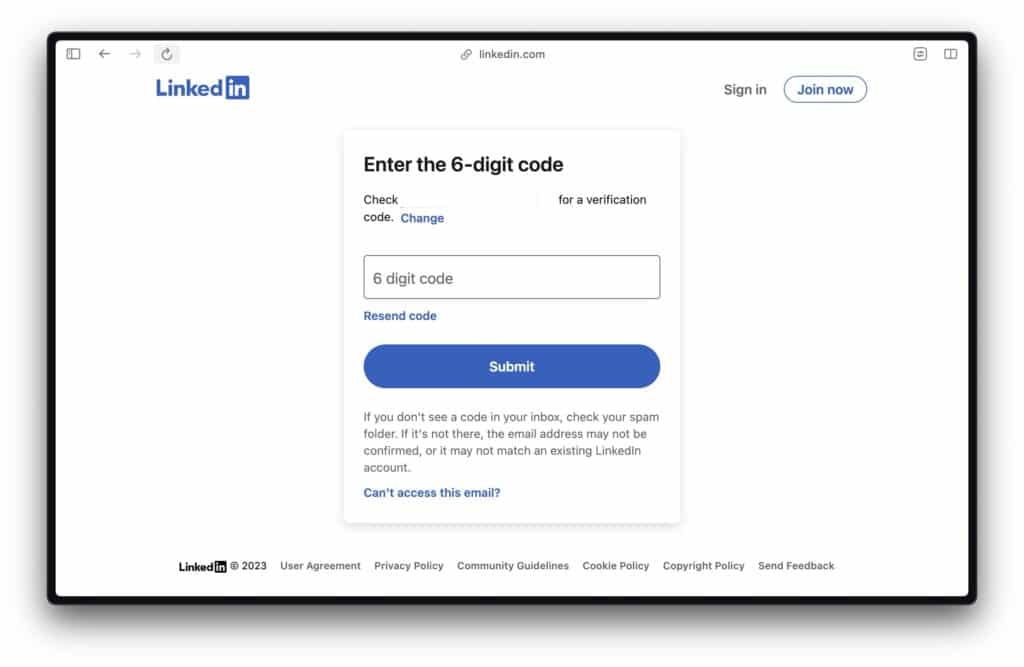
Account creation errors, email verification issues, and unexpected lockouts plague LinkedIn users daily.
Without knowing about this direct support option, frustrated users waste time trying to find help, potentially delaying their onboarding or training completion.
How to Use This Support Channel
Using the LinkedIn Support form is straightforward, even if you're not signed in:
Navigate to the link—No login required. You can access it directly from any browser.
Fill out the form—Provide your email address, describe your issue in detail, and include any relevant information (the email you used for account creation, when the problem started, error messages you received).
Submit and wait—LinkedIn's support team will respond to the email address you provided. Response times typically range from 24 to 72 hours, depending on issue complexity.
The key to getting faster resolution? Be specific. Instead of saying "I can't log in," explain exactly what happens when you try: Do you get an error message? Does the page freeze? Are you stuck on the verification step? The more detail you provide, the faster LinkedIn Support can diagnose and resolve the issue.
Best Practices for Organizations Using LinkedIn Learning
If your company uses LinkedIn Learning for continuing education, bookmark this support link and share it with your team. When employees encounter issues, they'll know exactly where to get help without confusion.
Consider also setting clear expectations: let your team know that account creation issues can be resolved through this support channel, and that they should reach out to either you or LinkedIn Support immediately if problems arise. This prevents delays in training completion and keeps your learning initiatives on track.
Additionally, encourage employees to check LinkedIn's help documentation first, as many common issues have simple solutions (like checking spam folders for verification emails or clearing browser cache).
Spread the Word
LinkedIn's support system isn't always intuitive, and many users don't realize this no-login-required option exists. If you've had to help an employee work through an account issue, you've already discovered the value of sharing this information. Consider mentioning it in your onboarding materials, team communications, or internal documentation.
The bottom line: You don't need a functioning LinkedIn account to get help from LinkedIn Support. Next time you or your team faces account creation or login troubles, skip the frustration and head directly to LinkedIn's direct support form. Your training timelines—and your sanity—will thank you.