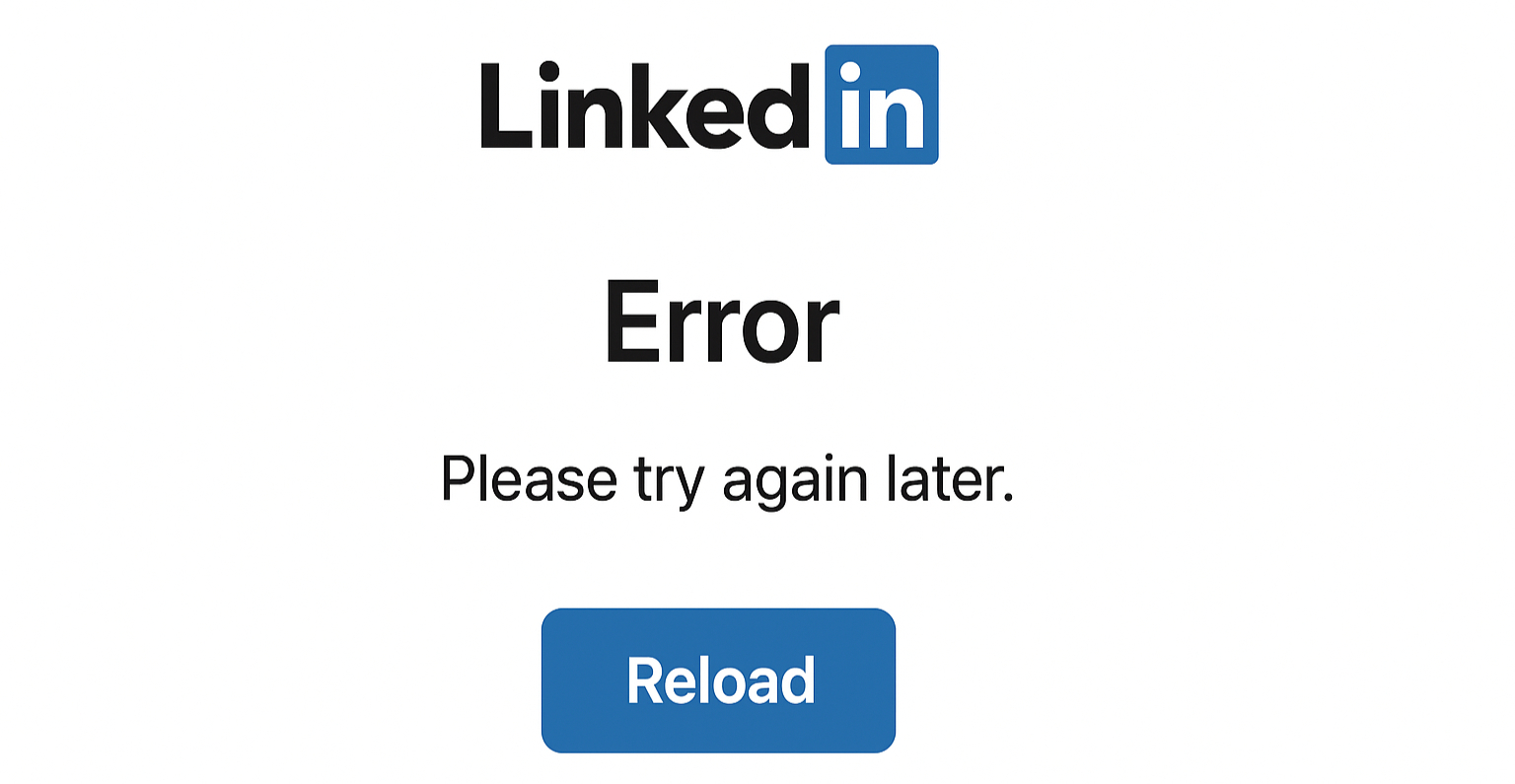
Ever opened LinkedIn, waiting for your feed to load… and instead you’re met with a blank screen, a looping spinner or a cryptic error message? It’s a moment of panic for anyone who uses LinkedIn regularly, whether you’re job-hunting, networking or managing business connections. The good news: most of the time the problem isn’t the platform itself, it’s something between you and LinkedIn. Here’s how to tell if LinkedIn is truly down, and if not, what you can do right now to fix it.
Why you should care If LinkedIn Is Down
If LinkedIn doesn’t load, your outreach stops, your content can’t be posted, your messages go unread. But before assuming the worst, it’s worth a few minutes of investigation. When you know what to check, you’ll often discover it’s a quick fix, not a major outage. And when it is a platform‐wide issue, you’ll recognize it quickly and avoid pulling your hair out trying everything.
Quick checklist: what to try first
Is the problem happening only on one device (e.g. your desktop) or on all devices (phone, tablet, another computer)?
Are others reporting the same issue? Check a site like Downdetector’s LinkedIn status page to see if there’s a spike in user complaints. downdetector.com
What exactly do you see: blank page? Loading spinner? “We’re having trouble” message? “403/500” errors or “504 gateway timeout”?
Has your network changed recently (switched from Wi-Fi to mobile data, VPN on/off, new router)?
Are you using a corporate network, VPN, firewall or security policy that might block or restrict parts of LinkedIn?
Deep dive: how to figure out what is wrong
Let’s walk through the steps, in order, so you know exactly where to look and how to fix things.
1. Check the official status & user reports
Visit LinkedIn, and also check third-party outage trackers. On Downdetector you’ll see user reports by region that tell you whether LinkedIn is currently having trouble for others.
If there’s a massive spike of reports, especially from your region, it’s likely a regional or global outage. If not, the issue is likely local to you.
2. Gather error details
When you’re facing trouble, knowing the fine details helps a lot if you need later to contact support.
Write down the exact error message (e.g., “500 Internal Server Error”, “Network Error”, “403 Forbidden”).
Note the time, your timezone, the device(s) used (phone + app version, desktop + browser version) and your region/country.
Screenshot where possible, a picture says a thousand words when you’re explaining the issue.
3. Try simple reloads and alternate devices
On desktop: Press Ctrl+F5 (Windows) or Cmd+Shift+R (Mac) to hard refresh the page.
Clear your browser’s cache and cookies, sometimes old data blocks fresh content.
Try opening LinkedIn in an incognito/private window (which disables extensions). If it works there, the issue might be your normal browser settings or add-ons.
On mobile: Force close the LinkedIn app, reopen it. If still failing, log out and back in, or uninstall and reinstall the app entirely.
4. Check your network & DNS settings
If reloads and devices don’t fix it, the issue might lie with your network:
Switch from Wi-Fi to mobile data (or vice-versa) and see if LinkedIn loads. If it works on one and not the other, your home Wi-Fi router or your ISP may be the culprit.
Restart your router.
Change your DNS servers temporarily to Google DNS (8.8.8.8 / 8.8.4.4) or Cloudflare DNS (1.1.1.1), sometimes domain lookups fail due to DNS bumps.
If you’re comfortable, you can also flush your local DNS cache:
Windows: ipconfig /flushdns
macOS: sudo dscacheutil -flushcache
Linux: depends on distribution (e.g., sudo systemd-resolve flush-caches on systemd-based systems)
5. Check browser extensions, corporate firewall, VPN
Sometimes the culprit is your environment:
Try disabling browser extensions (especially ad blockers / security plugins) and reload LinkedIn.
If you’re on a corporate network, your firewall or network policy may be blocking parts of LinkedIn (e.g., certain CDNs, scripts or ports). Try the site on a home network or mobile hotspot.
If you’re using a VPN: Some VPN IPs are flagged by LinkedIn (especially if over-used/shared), so try turning it off to see if access returns. Conversely, if you’re in a region that blocks LinkedIn > turning VPN on (to a allowed country) may restore access. ( bearvpn.com, https://windscribe.com )
6. When is it the platform itself?
If you’ve tried everything above and still no luck, and you see widespread outage reports, then it’s likely a problem on LinkedIn’s side (regional CDN issue, server fault, backend failure). In that case:
Check LinkedIn’s own status notifications or blog / Twitter feed for updates.
Be patient, major outages are rare but can last minutes to hours.
YouTube Video: Quick visual guide
Here’s a helpful YouTube walkthrough showing exactly how to fix common issues when LinkedIn is misbehaving:
It covers mobile & desktop, shows you how to diagnose app vs network vs server issues — it’s a good companion to this post.
Real-life examples & smart fixes
Here are a few typical scenarios, and how you can handle them:
Corporate laptop at work: LinkedIn won’t open, shows “site can’t be reached”. On mobile data it works fine. Likely the corporate firewall is blocking. Solution: Check with IT or use the mobile hotspot for now.
Hotel Wi-Fi or airport lounge: LinkedIn works on phone but not your laptop. Many public networks throttle or filter social platforms. Solution: Use mobile data or a trustworthy VPN.
Travelling abroad: You arrive in another country, LinkedIn refuses to load. Some countries or networks restrict professional/social platforms. Solution: Use VPN to route through a supported region.
Browser misbehaving: On desktop LinkedIn shows but chat/messaging doesn’t load; in incognito it works. Browser cache or an extension is interfering. Solution: Clear cache, disable suspicious extensions, or reinstall browser.
How long do LinkedIn outages usually last?
In cases where LinkedIn is down:
Minor/regionals: Often just a few minutes to an hour.
Major incidents: Could span several hours depending on cascading failures.
If you’ve confirmed a platform‐wide outage, you’ll just need to wait it out, keep an eye on updates, and in the meantime use alternate communication channels.
Final checklist
Check Downdetector for wide-scale reports
Try a different device (phone, tablet, another computer)
Use a different network (Wi-Fi or mobile data)
Clear browser/app cache; try incognito/private mode
Switch DNS to 8.8.8.8 or 1.1.1.1, flush DNS cache
Disable browser extensions, check VPN on/off, corporate firewall
Take screenshot of error (“403”, “500”, etc), note time, device+browser/app version
If all devices and networks fail and reports show outage, wait for LinkedIn to recover
For more useful insights, visit our blog and follow us on LinkedIn: